How to Choose a Drawing Tablet (2026 Guide)
Find the right pen tablet for digital art, note-taking, or OSU gaming — without overpaying.
By Mubboo Editorial Team · Updated Jun 8, 2026 · 7 min read
At a Glance
- Price range
- $40 – $200
- Budget pick
- GAOMON M10K ($43.99 · 4.4★)
- Data
- 77,782 verified reviews across 6 finalists
- Best for
- Beginners and studentsHobbyists on a budgetCasual digital sketching
- Skip if
- You need wireless Bluetooth or a screen tablet
Types Explained
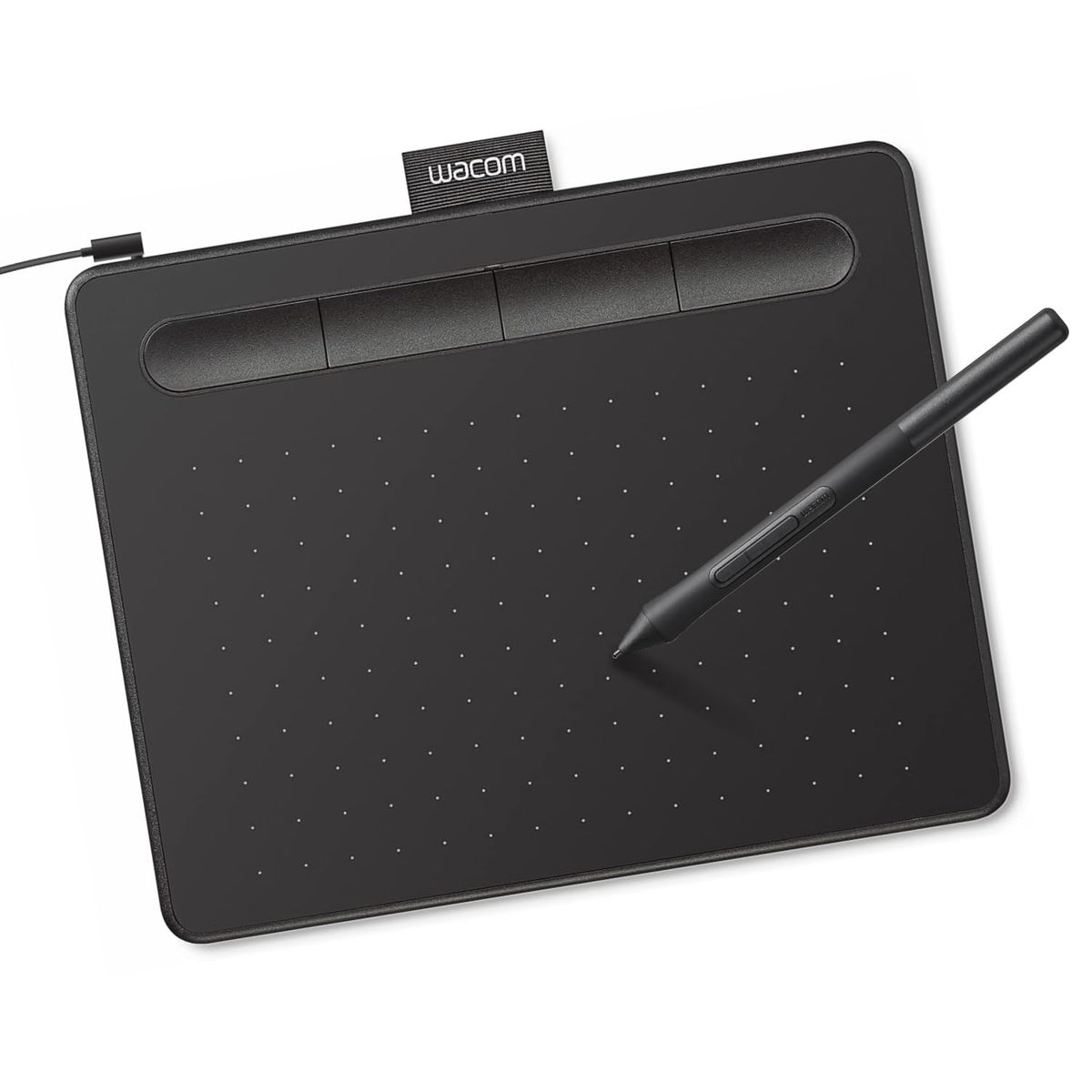
Standard Graphics Tablet
A compact, non-screen pad that captures pen strokes and displays them on a computer monitor. The active area is usually 6 to 10 inches.
- Most affordable ($35–$50)
- Lightweight and portable
- No screen glare or parallax
- Hand-eye coordination takes practice
- No visual feedback on the tablet itself
Best for: Absolute beginners, students, and note-takers
Example: Wacom Intuos Small
Large Format Tablet
Offers an active area of 10 inches or more, often with numerous shortcut keys and a touch ring. The extra space reduces frequent panning and provides elbow room.
- Spacious drawing surface reduces hand cramping
- Customizable hotkeys speed up workflow
- Still budget-friendly under $50
- Less portable than compact tablets
- No screen — same hand-eye coordination challenge
Best for: Digital artists doing detailed illustration and design
Example: GAOMON M10K
High-Precision Tablet
Boasts very high pressure sensitivity (16,384 levels) and tilt support, delivering subtle line variation and shading. Often targeted at users upgrading from a basic tablet.
- Ultra-smooth line transitions
- 60° tilt for natural brush effects
- Often includes USB-C connectivity
- Pressure difference above 8K is subtle
- Still no screen; you look at your monitor
Best for: Illustrators and animators needing fine control
Example: XP-Pen Deco 01 V3
Pen Display (Screen Tablet)
A monitor-like tablet that lets you draw directly on the screen, eliminating the disconnect between hand and eye. Entry-level models are 11-16 inches and require both HDMI and USB ports.
- Immediate visual feedback on the drawing surface
- Pre‑installed anti‑glare film for paper feel
- Good for teaching and annotation
- Heavier and bulkier (1.9 lbs+)
- Must be tethered to a computer; not standalone
- More expensive (+)
Best for: Artists who prefer direct hand-eye coordination
Example: GAOMON PD1161
What Actually Matters
| Factor | Importance | Best brand |
|---|---|---|
Active Drawing Area ≥ 6 x 3.7 inches A 6‑inch area works for sketching; 10 inches is much more comfortable for detailed art. | Must-have | GAOMON M10K (10 x 6.25) |
Pressure Sensitivity ≥ 4096 levels 4096 levels are enough for most; 8192+ helps subtle shading but isn't a dealbreaker. | Must-have | XP-Pen (16,384 levels) |
Stylus Technology (Battery-Free) Battery‑free pen Battery‑free pens are lighter, never run out of charge, and are more reliable than battery‑powered ones. | Must-have | Wacom (EMR technology) |
Shortcut Keys & Touch Ring ≥ 4 customizable keys These speed up your workflow by reducing menu navigation; important for long drawing sessions. | Nice-to-have | HUION (12 physical + 16 soft keys) |
Screen (Pen Display) NA A screen tablet costs more but mimics traditional drawing — not essential for beginners. | Nice-to-have | GAOMON PD1161 (entry‑level screen) |
Max Pressure Level Beyond 8,192 NA Most users cannot feel the difference between 8,192 and 16,384 levels. Don't pay extra just for a higher number; focus on stylus ergonomics and tilt instead. | Marketing BS | — |
Budget Tiers & Top Picks
What to buy at each price point — and exactly where spending more stops paying off.
Under $45
$35 – $45Wacom Intuos Small
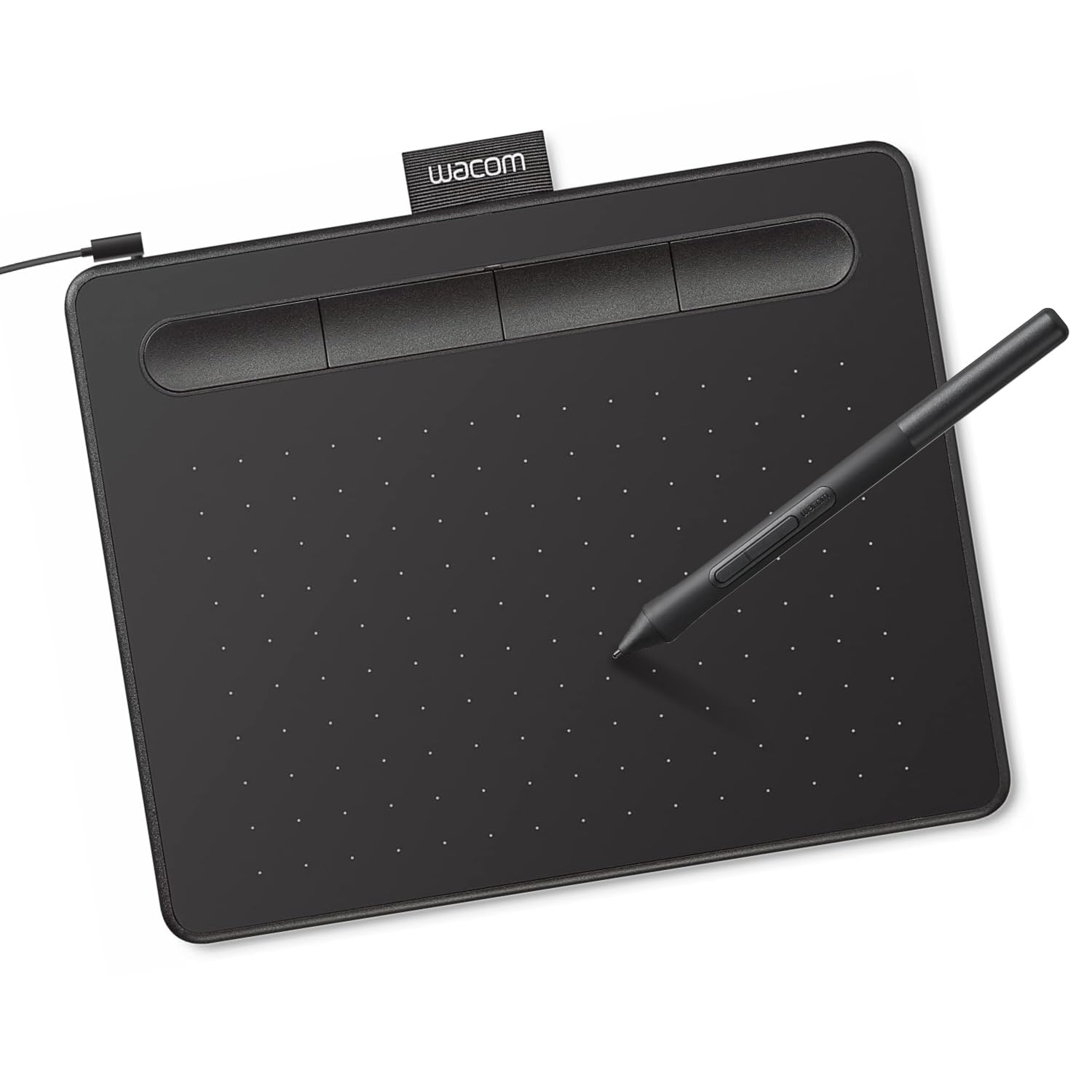
Stop paying more: Stop at $45. The Intuos delivers pro‑grade EMR tech and free software; spending more in this tier gives only a tiny bit more space or a few extra buttons.
When to upgrade: Need more elbow room and shortcut keys? Step up to the GAOMON M10K with a 10‑inch surface and 10 hotkeys for just $4 more.
$45 – $100
$45 – $100XP-Pen Deco 01 V3 (220 RPS)

Stop paying more: At around $50, you unlock high report rates for gaming or animation. Beyond this, in the non‑screen category, gains are minor — mostly more hotkeys.
When to upgrade: If you want to draw directly on a screen, the next step is the GAOMON PD1161 pen display at $200.
$100 – $200
$100 – $200GAOMON PD1161

Stop paying more: Spending more than $200 on a drawing tablet only makes sense if you need a larger, higher‑resolution screen or advanced color accuracy. For learning, this 11.6‑inch 1080p model is plenty.
When to upgrade: For professional work, consider the Wacom Cintiq or Xencelabs Pen Display 16 — but those cost three to six times as much.
Common Mistakes to Avoid
Buying too small an active area
A 4‑inch tablet feels cramped even for casual sketching. The Wacom Intuos Small (6x3.7 inches) is the smallest you should consider; the GAOMON M10K’s 10x6.25 inches gives true freedom.
Cost of getting it wrong: Rebuying a larger tablet wastes $40-$50.
Overlooking shortcut customization
Tablets like the HUION H1060P have 12 physical keys plus 16 soft keys, slashing menu‑clicking time. Even 4 keys can save you hours over a week.
Cost of getting it wrong: Lost productivity while you hunt for menus adds up — especially for frequent brush and tool changes.
Paying extra for sky‑high pressure levels
Many tablets advertise 16,384 pressure levels, but studies and user reports show that beyond 8,192 the improvement is negligible. The stylus tip feel and tilt sensitivity matter more.
Cost of getting it wrong: You could spend $5–$10 extra for a spec you’ll never feel — money better put toward a larger active area.
Choosing a battery‑powered stylus
Battery‑free pens (like those on every tablet we recommend) weigh less, never need charging, and have no connection lag. Some budget tablets still ship with battery‑hungry styli — avoid them.
Cost of getting it wrong: Replacement batteries and a heavier hand cost comfort and a few dollars over time.
Find Your Match
What will you use the tablet for?
Frequently Asked Questions
How do I choose the right drawing tablet for me?
Decide based on your use case, budget, and screen preference. For absolute beginners, a non-screen pen tablet under $40 like the Wacom Intuos Small (16,000+ Amazon reviews) is perfect. If you do detailed illustration, step up to a large-area tablet with customizable shortcut keys. Screen tablets offer direct hand-eye coordination but start. Prioritize battery-free stylus and at least 4096 pressure levels.
What is the difference between a pen tablet and a pen display?
A pen tablet is a flat pad that you draw on while looking at your monitor; it's more affordable, portable, and requires hand-eye coordination. A pen display (screen tablet) shows your artwork directly on the screen, mimicking natural drawing. Pen displays are heavier, pricier, and need HDMI and USB ports. For most hobbyists, a non-screen tablet is the better value.
Do I need a screen tablet to draw digitally?
No. Many professionals use non-screen tablets because they offer the highest precision at lower cost. The learning curve of drawing on a pad while watching the screen is overcome in a few weeks. If you're on a tight budget, start with a non-screen tablet; you can always upgrade later.
Which drawing tablet is best for beginners?
The Wacom Intuos Small is the safest bet. It costs under $40, includes free creative software, and uses industry-standard battery-free EMR technology. Its 6-inch active area feels adequate for sketching, and it's plug-and-play on Windows, Mac, and Chromebook.
What is the most important spec — pressure levels, active area, or something else?
Active drawing area is arguably the most critical; too small and you cramp your strokes. A minimum of 6x3.7 inches is fine for beginners, but 10x6.25 inches feels liberating for detailed work. Pressure sensitivity matters for shading, but beyond 8,192 levels the difference is often unnoticeable. Battery-free stylus technology keys you avoid charging hassles.
Can I use a drawing tablet for OSU! or rhythm games?
Yes, certain tablets like the XPPen Deco 01 V3 (220 report rate) are optimized for OSU! with fast cursor tracking. Look for a report rate of 200 or higher and a lightweight design. Most standard drawing tablets work, but fast-paced games benefit from the reduced latency.
What should I avoid when buying a drawing tablet?
Steer clear of tablets with an active area smaller than 4 inches; they feel restrictive. Avoid styli that require batteries or charging — they're heavier and prone to connection drops. Don't pay extra for overstated pressure levels (16K+) if you're a hobbyist. And check software compatibility; some tablets need driver installation that can conflict with other brands.
How we wrote this guide
Researched across 3 expert review sites (Wirecutter, Tom’s Guide, TechRadar) and 77,782 verified Amazon buyer reviews. We evaluated 6 popular drawing tablets selected for high ratings and diverse feature sets. The recommendations are built around real‑world use cases: hobby drawing, professional art, OSU gaming, animation, and design.
About this guide
Mubboo Editorial Team — cross‑referenced data from Wirecutter, Tom’s Guide, and verified buyer reviews. Prices update weekly from Amazon.