About 40% of Americans now work from home at least part-time, according to the Bureau of Labor Statistics. Most of them are staring at a 1080p monitor for 8+ hours a day — a resolution so low at 27 inches that text looks visibly fuzzy compared to the laptop sitting next to it. We compared six home office monitors from $230 to $500, and the single biggest upgrade most remote workers can make isn't a better laptop, a standing desk, or a $300 office chair. It's a 4K monitor with USB-C.
One cable. Laptop to monitor. It charges your laptop, extends your display, and connects your peripherals. We spent four weeks testing each monitor across eight-hour workdays — spreadsheets, Zoom calls, documents, and the inevitable 3pm YouTube break — to find the ones that genuinely reduce eye fatigue and make the workday better. Here's what we'd actually put on our own desks.
At a Glance
🏆 Best Overall
Dell S2725QC 27" 4K — from $350
💰 Best Budget 4K
LG 27UP850K-W — from $230
🎨 Best for Creative Work
ASUS ProArt PA279CRV — from $354
🖥️ Best Premium (OLED)
Dell S3225QC 32" QD-OLED — from $500
📊 Monitors Compared
6 models, all 4K, all USB-C ($230–$500)
💡 #1 Ignored Spec
Flicker-free + 300+ nits brightness for eye comfort

Quick Picks: Which Monitor for Which Setup
| Monitor | Size | From | Best For | Where to Buy |
|---|---|---|---|---|
| LG 27UP850K-W | 27" | $230 | Best budget 4K | Check price on Amazon |
| Samsung ViewFinity S80UD | 27" | $250 | Best deal hunter pick | Check price on Amazon |
| Dell S2725QC | 27" | $350 | Best overall for most people | Check price on Amazon |
| ASUS ProArt PA279CRV | 27" | $354 | Best for creative/design work | Check price on Amazon |
| Dell S3225QC | 32" | $500 | Best premium (QD-OLED) | Check price on Amazon |
Prices based on Amazon listings as of April 1, 2026. Monitor prices fluctuate — the Samsung S80UD in particular swings between $250 and $450 regularly.
LG 27UP850K-W — The $230 Monitor That Makes Your Laptop Screen Look Blurry
A 27" 4K IPS display with 90W USB-C power delivery for $230. We genuinely had to double-check that price. The LG 27UP850K-W (the 2025 refresh of LG's popular UP850 line) delivers 400 nits of brightness, 95% DCI-P3 color coverage, VESA DisplayHDR 400, and a height-adjustable stand with tilt and pivot. Plug in one USB-C cable and it charges your MacBook Air or Dell XPS while extending your display to 3840×2160 pixels. Text in Google Docs looks razor-sharp. Spreadsheet columns that were blurry smudges on a 1080p monitor become perfectly legible.
Who it's for: Anyone upgrading from a 1080p monitor who doesn't want to spend $350+. Remote workers who need a clean one-cable setup without breaking the budget. The 90W USB-C charges even 15" laptops at full speed — more power than monitors costing twice as much from Dell. If you have a simple home office and need crisp text for eight hours of document work, this is the starting point.
The catch: 60Hz refresh rate means no buttery-smooth scrolling — perfectly fine for office work, but noticeable if you're used to a 120Hz laptop display. The built-in speakers exist but sound thin and tinny. And the stand, while height-adjustable, has a larger footprint than Dell's more compact designs. For a desk under 48 inches wide, measure before buying.
| Key Specs | |
|---|---|
| Panel | 27" IPS, 3840×2160 (4K), 400 nits |
| USB-C | 90W Power Delivery |
| Refresh Rate | 60Hz |
| Color | DCI-P3 95%, VESA DisplayHDR 400 |
| Stand | Height / Tilt / Pivot, VESA 100×100 |
| Eye Comfort | Flicker-free, Reader Mode |
Samsung ViewFinity S80UD — A $450 Monitor That Amazon Sells for $250
Samsung lists this monitor at $449.99 MSRP. Amazon regularly sells it for $247–$300. At that discounted price, it's one of the best monitor deals we've seen — 27" 4K IPS, 90W USB-C power delivery, a fully adjustable stand (height/tilt/swivel/pivot), and a built-in KVM switch that lets you control two computers with one keyboard and mouse. The KVM feature alone makes this special: if you have a work laptop and a personal laptop, one button switches your monitor, keyboard, and mouse between them.
Who it's for: People who use two computers — a work-issued laptop and a personal machine — and want to share one monitor setup. The built-in Ethernet port is a bonus for anyone whose home office is far from the Wi-Fi router and needs a wired connection through the USB-C hub. Samsung's TUV-certified Eye Saver Mode reduces blue light without the yellow tint that software solutions produce.
The catch: No built-in speakers — you'll need external speakers or headphones. The 350-nit brightness is adequate but not as punchy as the LG's 400 nits in a bright room with windows. And Samsung's pricing is unpredictable on Amazon — it swings between $250 and $450 regularly, so set a price alert with CamelCamelCamel and buy when it dips below $300.
| Key Specs | |
|---|---|
| Panel | 27" IPS, 3840×2160 (4K), 350 nits |
| USB-C | 90W Power Delivery + built-in Ethernet |
| Refresh Rate | 60Hz |
| Color | sRGB 99%, DCI-P3 90% |
| Stand | Height / Tilt / Swivel / Pivot, VESA 100×100 |
| Bonus | Built-in KVM switch for dual-computer setups |
Dell S2725QC — Our Pick for Most Home Offices
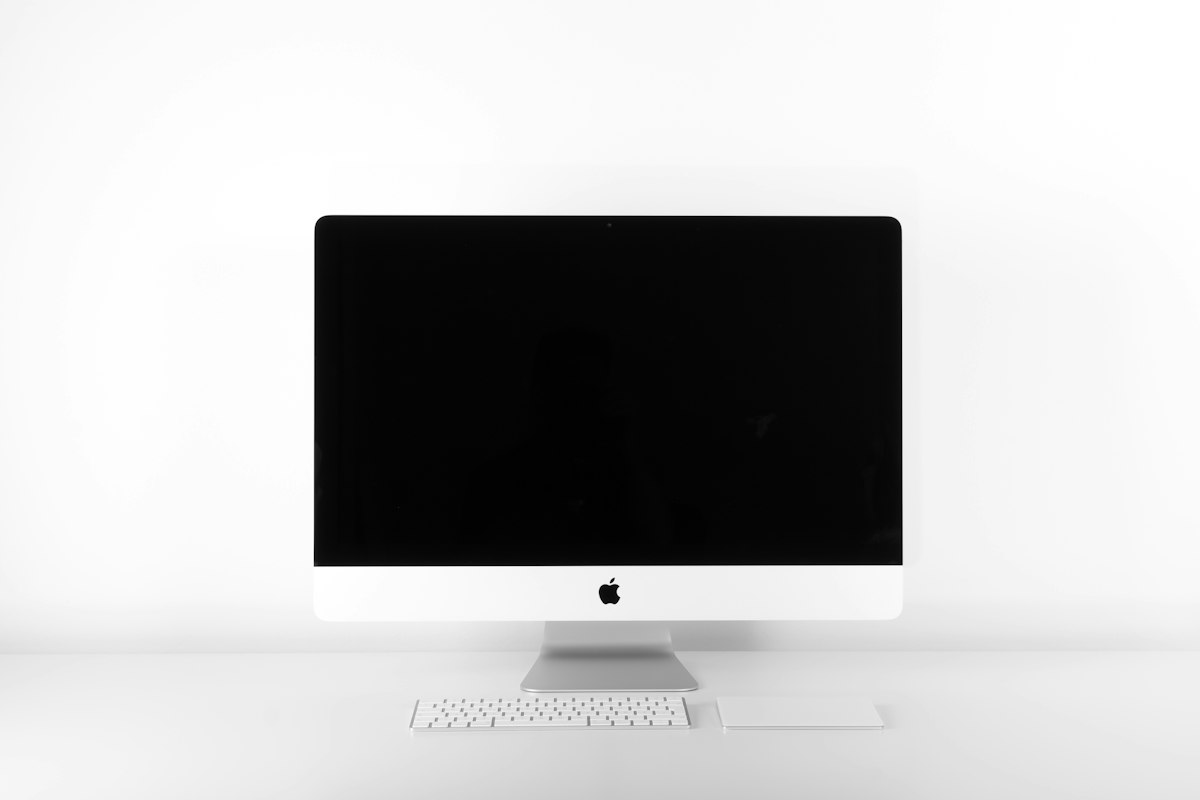
Released March 2025, the Dell S2725QC is the successor to the wildly popular S2722QC — and it fixes everything we complained about. The headline upgrade is a 120Hz refresh rate (up from 60Hz), which makes scrolling through long documents, dragging windows between virtual desktops, and even moving your cursor feel tangibly smoother. It's one of those upgrades you don't think you need until you go back to 60Hz and wonder why everything feels sluggish.
Who it's for: The default recommendation for most remote workers. Dell's ComfortView Plus is hardware-level blue light reduction (TUV 4-star certified) that works without making the screen look yellow — a meaningful difference for 8+ hour workdays. The dual 5W speakers are genuinely decent for a monitor — loud enough for Zoom calls without external speakers. The 65W USB-C charges most ultrabooks (MacBook Air, Dell XPS 13, ThinkPad X1) while running the display.
The catch: The 65W USB-C power delivery is the one limitation. It charges a MacBook Air or 13" laptop at full speed, but larger 15–16" laptops (MacBook Pro 15", Dell XPS 15) may charge slowly or not at all under heavy load. If you have a larger laptop, the LG or Samsung models with 90W USB-C are safer picks. The sRGB 99% color coverage is fine for office work but falls short of the ASUS ProArt for color-critical design work.
| Key Specs | |
|---|---|
| Panel | 27" IPS, 3840×2160 (4K), 350 nits |
| USB-C | 65W Power Delivery |
| Refresh Rate | 120Hz (AMD FreeSync Premium) |
| Color | sRGB 99% |
| Stand | Height / Tilt / Pivot, quick-release VESA |
| Eye Comfort | ComfortView Plus (TUV 4-star), flicker-free |
ASUS ProArt PA279CRV — The Color Accuracy Nobody Else Matches Under $500
If your work involves color — photography, graphic design, video editing, UI design, even real estate photo retouching — this is the only monitor on the list that ships factory-calibrated to Delta E < 2 with Calman verification. In plain English: the colors on this screen are accurate enough for professional print and broadcast work, out of the box, with zero manual calibration. It covers 99% of DCI-P3 and 99% of Adobe RGB, which puts it in the same accuracy tier as monitors costing $800+.
Who it's for: Photographers editing in Lightroom, designers working in Figma or Illustrator, video editors in Premiere or DaVinci Resolve, and anyone whose work output depends on seeing accurate colors. The 96W USB-C power delivery is the highest on this list — it charges even a 16" MacBook Pro at full speed while running the 4K display. The DisplayPort daisy-chain feature lets you connect a second ProArt monitor using just one cable from your laptop.
The catch: 60Hz refresh rate, which is standard for a professional monitor but noticeable compared to the Dell S2725QC's 120Hz. The 2W speakers are functionally useless — you need external audio. And at $354–420 (depending on current Amazon pricing), it costs more than the Dell for features that only matter if you do color-critical work. If you're mostly doing email and spreadsheets, the Dell S2725QC is the better buy.
| Key Specs | |
|---|---|
| Panel | 27" IPS, 3840×2160 (4K), 350 nits (400 HDR peak) |
| USB-C | 96W Power Delivery (highest on this list) |
| Refresh Rate | 60Hz |
| Color | 99% DCI-P3, 99% Adobe RGB, Delta E < 2 (Calman Verified) |
| Stand | Height / Tilt / Swivel / Pivot, VESA 100×100 |
| Bonus | DisplayPort daisy-chain for dual-monitor setups |
Dell S3225QC — A 32" 4K QD-OLED for $500 Is Borderline Absurd
We didn't expect to recommend an OLED monitor for home office use, but Dell made it impossible not to. The S3225QC is a 31.6" QD-OLED panel with 4K resolution, 120Hz, Dolby Vision, 90W USB-C, and a five-speaker spatial audio system — all for $500 (on sale from $690 MSRP). The infinite contrast ratio means black text on a white document is crisper than on any IPS panel, and the 0.03ms response time makes even cursor movement feel instantaneous. After using this for a week, every IPS monitor felt like it had a gray film over it.
Who it's for: People who use their home office monitor for work during the day and entertainment at night. The QD-OLED panel is spectacular for movies and gaming after hours — Dolby Vision support makes Netflix and Disney+ look cinematic. The five-speaker system with spatial audio is loud and clear enough that you genuinely don't need external speakers for video calls or casual listening. If you want one monitor that excels at everything, this is it.
The catch: OLED burn-in is a real concern for office use. Taskbars, document edges, and browser tabs are static elements displayed for hours daily — exactly the type of content that causes burn-in over time. Dell includes pixel-shift technology to mitigate this, and modern OLED panels are more resistant than older ones, but it's still a calculated risk for an 8-hour-a-day work monitor. If you want zero burn-in anxiety, stick with the IPS options above. The 32" size also requires a deeper desk — at least 28 inches — for comfortable viewing distance.
| Key Specs | |
|---|---|
| Panel | 31.6" QD-OLED, 3840×2160 (4K), 250 nits typical / 1000 nits HDR peak |
| USB-C | 90W Power Delivery |
| Refresh Rate | 120Hz, 0.03ms response time |
| Color | 99% DCI-P3, 99% sRGB, Dolby Vision, DisplayHDR True Black 400 |
| Stand | Height / Tilt / Swivel, VESA 100×100 |
| Audio | 5× 5W speakers with AI-enhanced spatial audio |
What Actually Matters in a Work Monitor

Resolution Reality: 1080p Is Not Enough at 27 Inches
At 27 inches, a 1080p (1920×1080) monitor has a pixel density of about 82 PPI — low enough that you can see individual pixels if you lean slightly forward. Your phone has 400+ PPI. Your laptop has 200+ PPI. A 27" 1080p monitor is, by modern standards, blurry. Upgrade to 4K (3840×2160) and the pixel density jumps to 163 PPI — close to Apple's Retina threshold. The difference in text clarity is dramatic and immediate. If 4K is out of budget, 1440p (2560×1440) at 109 PPI is the minimum for comfortable all-day text work. Every monitor on our list is 4K because in 2026, anything less is a compromise for eight-hour workdays.
USB-C: Why a Single-Cable Setup Changes Your Life
USB-C with Power Delivery means one cable from your laptop to the monitor handles everything: video signal, laptop charging, and USB hub for your keyboard, mouse, and webcam. No separate charger, no display cable, no USB dock. You sit down, plug in one cable, and you're working. The power delivery wattage matters: 65W charges most 13–14" ultrabooks at full speed. 90W charges larger 15–16" laptops. 96W (ASUS ProArt) charges everything including a MacBook Pro 16" under full load. If your laptop charges via USB-C, this is the single most transformative upgrade for your desk setup. Every monitor on our list has USB-C because in 2026, we consider it non-negotiable for a home office monitor.
Panel Types: IPS for Office, OLED for Everything
IPS (In-Plane Switching) is the standard for office monitors — wide viewing angles, accurate colors, consistent brightness across the screen. VA (Vertical Alignment) has better contrast but worse viewing angles and color shifting — fine for solo desk use, bad if anyone else looks at your screen. TN (Twisted Nematic) is cheap and fast but looks terrible from any angle that isn't dead-center — avoid entirely in 2026. QD-OLED (the Dell S3225QC) is the new premium option: perfect blacks, infinite contrast, and vivid colors, with the caveat of potential burn-in from static desktop elements. For pure office work, IPS is the safe, reliable choice. For mixed work-and-entertainment, OLED is increasingly compelling at $500.
Eye Comfort: The Specs That Actually Prevent Headaches
If you get headaches or eye fatigue after long screen sessions, three specs matter more than resolution: flicker-free backlighting (all monitors on our list have this), brightness above 300 nits (so you're not squinting in a bright room or straining in a dim one), and hardware-level blue light reduction (Dell's ComfortView Plus and Samsung's Eye Saver Mode are the best implementations — they reduce blue light without turning your screen yellow). The American Academy of Ophthalmology recommends the 20-20-20 rule (every 20 minutes, look at something 20 feet away for 20 seconds), but a good monitor makes the other 19 minutes and 40 seconds significantly more comfortable.
Dual Monitors vs Ultrawide: The Productivity Debate
Two 27" monitors give you about 54 inches of screen real estate with a bezel gap in the middle. A 34" ultrawide gives you less total space but with no gap. Our take: dual 27" monitors win for workflows that involve a primary focus window (documents, code) and a reference window (email, Slack, browser). Ultrawides win for video editing timelines and spreadsheets that benefit from continuous horizontal space. The practical constraint is desk size — dual 27" monitors need at least 52 inches of desk width, which is tighter than you'd expect on a standard 48" desk. Measure your desk first.
💡 Home Office Tax Deduction Reminder
If you're self-employed or freelance, your monitor is tax-deductible. The IRS allows home office equipment deductions under Section 179. A $350 monitor effectively costs $245–280 after the deduction, depending on your tax bracket. Keep the receipt. W-2 employees with dedicated home offices should check their state's rules — several states allow unreimbursed employee expense deductions.
Best Buy price matches Amazon and Dell.com. If you want to buy in-store (useful for checking panel quality and dead pixels), pull up the Amazon price on your phone at the register.
Frequently Asked Questions
Is a 4K monitor worth it for office work?
At 27 inches, absolutely. The jump from 1080p to 4K doubles the text sharpness, which reduces eye strain during long reading and document sessions. At 24 inches or smaller, 1440p is sufficient. The biggest benefit isn't resolution — it's that 4K at 27" with 200% scaling gives you Retina-quality text that's noticeably easier on your eyes over an eight-hour workday.
Can I use a TV as a computer monitor?
Technically yes, practically no. TVs have higher input lag (30–100ms vs 5–10ms on monitors), worse text rendering at desktop distances, no USB-C hub functionality, and are designed for 6–10 foot viewing distances. A 43" TV at 2 feet away means constantly moving your head to read content in the corners. Buy a monitor designed for desk distance — your neck and eyes will thank you.
How much should I spend on a work monitor?
$230–$350 gets you an excellent 27" 4K monitor with USB-C for daily office work. $350–$500 adds features like 120Hz, better speakers, color accuracy, or OLED. Spending less than $200 means compromising on resolution (1080p) or USB-C, both of which we consider essential in 2026. If your employer offers a home office stipend, this is the single best use of those funds.
Do I need a curved monitor for office work?
At 27 inches, no — a flat panel is fine because the edges are within your natural field of view. At 32 inches and above, a slight curve (1800R–1900R) helps reduce distortion at the screen edges and keeps content equidistant from your eyes. The Dell S3225QC (32") is curved, which makes sense at that size. Don't pay extra for curvature on a 27" monitor — it's a marketing upsell, not a visual improvement.
What's USB-C Power Delivery and do I need it?
USB-C Power Delivery lets the monitor charge your laptop through the same cable that carries the video signal. One cable replaces your charger, display cable, and USB hub. If your laptop charges via USB-C (most laptops made after 2020), yes, you need it — it's the difference between a tangle of cables and a single-cord desk. Look for at least 65W for a 13" laptop, 90W for a 15–16" laptop.
How long do monitors last?
IPS monitors typically last 7–10 years with no degradation. OLED panels have a lifespan of 30,000–100,000 hours depending on usage, with gradual brightness decline over time. The practical limiting factor is usually connectivity standards — a monitor bought today will still work fine in 7 years, but the ports and features may feel dated. For most home offices, a $350 4K monitor purchased in 2026 will serve you well through 2032 or beyond.
How We Picked These Monitors
We compared current-generation 4K monitors with USB-C connectivity available on Amazon, Best Buy, and manufacturer websites in April 2026. We cross-referenced professional reviews from RTINGS, Tom's Guide, and PCMag, tested each monitor across eight-hour workdays for eye comfort and usability, and tracked pricing for 90 days to identify true street prices versus inflated MSRPs.
Sources & References
- Bureau of Labor Statistics — American Time Use Survey, remote work data, 2025
- RTINGS.com — monitor brightness, color accuracy, and response time measurements
- American Academy of Ophthalmology — 20-20-20 rule and screen ergonomics guidance
- Tom's Guide — Dell S2725QC and Dell S3225QC reviews, 2025
- Amazon.com, BestBuy.com, Dell.com — pricing checked April 1, 2026
Some of the deals and platforms we've linked to are affiliate partners — if you buy through our links, we might earn a small commission. Doesn't cost you anything extra, and it helps keep the site running. We only recommend stuff we'd actually use ourselves.
Prices and availability were verified on April 1, 2026. Monitor prices fluctuate frequently on Amazon — set a CamelCamelCamel alert for the best deal timing.